

How to Change Your Author Name in WordPress
In WordPress, when you write a blog post, you can choose to have who has written the post next to the title. This can appear in the blog search/archive list of your posts, or on the blog post itself.
See in this image below how the post has been set with the author being The Balanced Blogger? That’s what I’m talking about here.
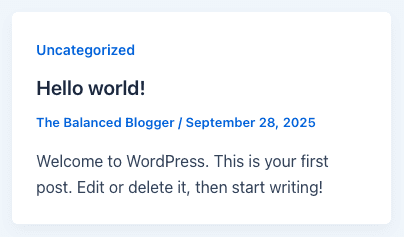
Some people like to see their name next to the blog post they’ve written. And if you’ve got guest authors or a few people contributing to your blog, being able to differentiate who wrote each post is super useful for your reader and for giving he right author credit for their work.
But when you first install WordPress, chances are that your author name has been automatically set as the email address that you used to set up your hosting. And this is a huge point that often gets overlooked by bloggers in the beginning of their blogging journey.
Why You Need to Change The Author Name from the Default Settings
This is a huge issue for a few of reasons:
- Depending on which email address you’ve used to set up your hosting, and consequently WordPress, you likely don’t want strangers on the internet to be able to get hold of that email address.
- Bots crawl the internet trying to find email addresses that they can read and spam.
- If you’re blogging anonymously, then you’ve lost that anonymity before you’ve even begun your blogging journey.
So, how are you going to fix this problem? Read on for the step-by-step tutorial.
Change Your Author Name: Step-by-Step
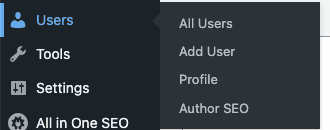
First, you’re going to hover over ‘Users’ in the left-hand menu on your Dashboard and click ‘All Users.’
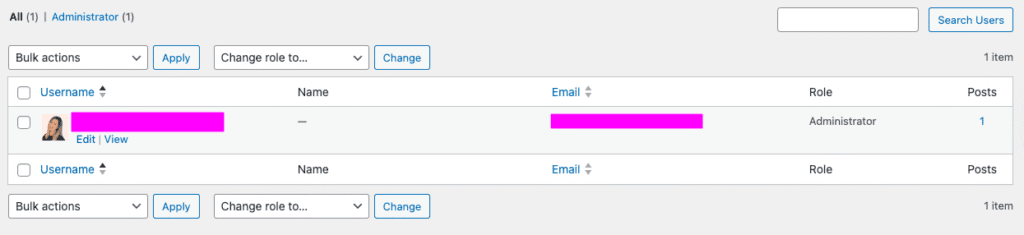
You’ll be bought to a screen where you can see all users attached to your WordPress account. At this stage, it’ll most likely only be you.
Where I’ve added pink boxes to the below screenshot, you’ll see your email address.
Under the first pink box/your ‘Username’ email address, you’ll notice an ‘Edit’ button. Click on this.
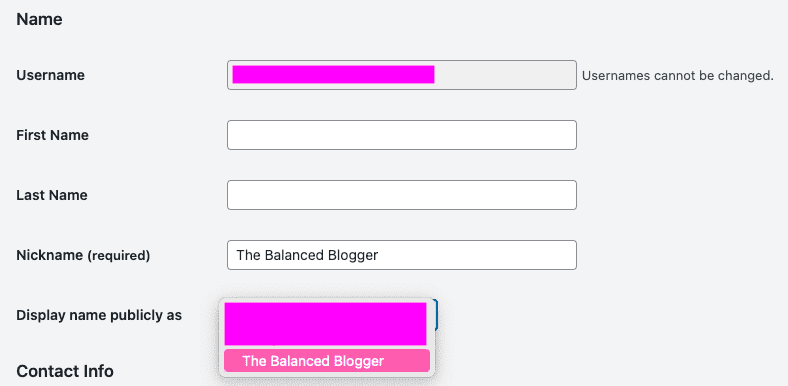
Scroll until you see the ‘Name’ section. Here, I’ve covered my email address, but you’ll see yours where the pink boxes are.
You cannot change your username; this is for logging in, and WordPress needs it to stay the same. There are work arounds for this, but it’s a little complex and I’ll likely cover it in another blog post.
Where you see ‘Nickname,’ type in whatever you’d like your author name to be for your blog posts. This could be your first name, your first name and surname, a pseudonym (a name you use to write with, but not your real name), a nickname, or the name of your blog. In my case, I’ve set my nickname as ‘The Balanced Blogger.’
You can also add your First Name and Last Name, or you can leave those boxes blank.
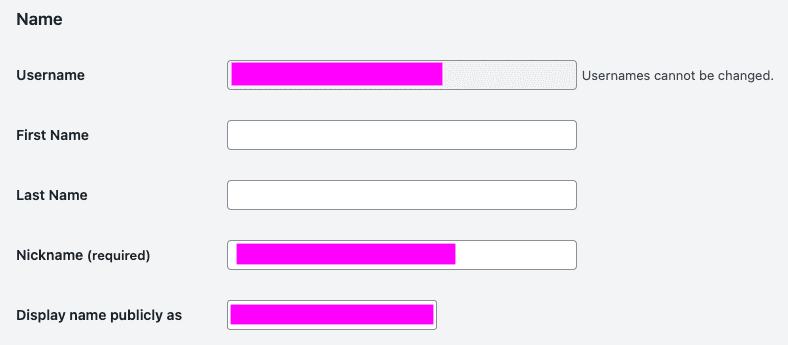
Once you’ve changed your nickname, in the ‘Display name publicaly as’ box, click the dropdown and select the nickname that you’ve just entered.
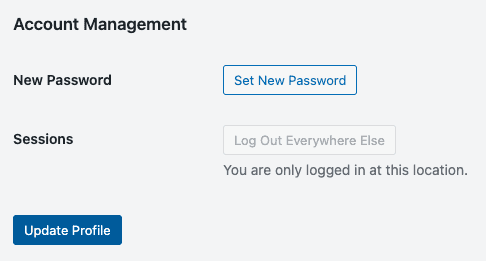
Once you’ve selected your new author name, scroll to the bottom of the page and select ‘Update Profile.’
When you go to any of your blog posts, you’ll notice that the author of the post is now changed to the name you selected in the ‘Display name publicaly as’ drop down.

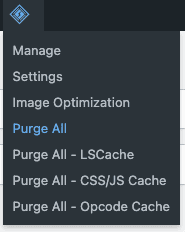
If the new name isn’t showing, you might need to purge your cache.
If you installed WordPress using Hostinger, you will likely have had a caching plugin such as LiteSpeed Cache installed at the same time. If you do, hover over the LiteSpeed Cache icon at the top of the page and select ‘Purge All.’ On refresh, your author name will have updated.
And that’s it!
Your author name is all changed! If you have blog posts already published, the name change will appear across all of your blog posts.
If you need to change your author name again, simply follow the same steps in this tutorial.

Verity Sangan
Hey! I'm Verity. I love all things podcasting and am passionate about helping more women to find their voice through podcasting. When I'm not working or busy with mum duties, I host Podcasting for Indie Podcasters (formerly The Lazy Girl's Guide to Podcasting).


You May Also Like

How to Delete an Unused WordPress Theme (The Easy Method)

How to Install and Configure Wordfence in 10 Minutes