

How to Delete an Unused WordPress Theme (The Easy Method)
WordPress themes are incredibly fun to install and customise to help you get your blog looking exactly how you want it to.
But overtime, you might end up with themes installed in your WordPress Dashboard that you’re no longer using. Perhaps they were pre-installed when you first set up your WordPress account, or perhaps you’ve switched your theme a couple of times and left the old themes just sitting there.
But having excess themes on your blog that you aren’t using can:
- Significantly slow your blog’s speed
- Decrease your blog’s security
- Eat into your blog’s storage
- Increase your WordPress maintenance activity
In this blog post, I’m going to walk you through the easiest way to delete unused WordPress themes so that you can have your blog running at its optimum speed and performance.
Before You Delete a WordPress Theme
I know you’re here for the how-to and just want to get on with deleting your unused WordPress themes, but stick with me just for this section and check that you’ve considered the following before you jump into the tutorial:
- Make sure that the theme you want to delete isn’t the theme that you are using.
- It might sound silly, but if you delete the theme that you’re using, you’ve lost how your site looks.
- Make sure that you aren’t deleting your backup theme.
- I always encourage bloggers to have a backup theme. This is just in case something happens to your active theme, then your blog can continue to display your content, even if it doesn’t look very ‘on-brand.’ A backup theme is usually a standard WordPress one, such as Twenty Twenty-Five.’
- Back up your website before you start.
- Just in case anything goes wrong with deleting something as large and with as much code as a theme, it’s worth backing up your WordPress blog as a precaution just in case something goes wrong. (And as some reassurance, in 7 years of blogging, I never have had anything go wrong as a result of deleting an unused theme, but I wouldn’t want to take the risk!)
- Make sure you’re not using a child theme, and if you are, don’t delete the parent theme.
- You’ll know if you’re using a child theme because it will likely have ‘child theme’ in the theme’s name. If you’re using a child theme, check the theme’s documentation to know if you need to have the parent theme installed before deleting the seemingly unused parent theme. It’s most likely that you need to keep the parent theme installed whilst using the child theme, otherwise the child theme won’t work correctly, if at all.
How to Delete Unused WordPress Themes
To find the themes installed in your WordPress, hover over ‘Appearance’ in the left-hand menu on your WordPress Dashboard and click ‘Themes.’
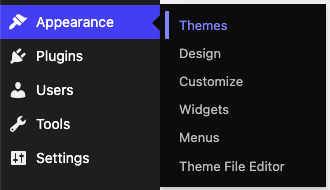
You will then be able to see all of the themes installed on your website. Depending on who your website host is and how your blog was setup will likely depend on how many themes you have installed.
Remember, you need to have the theme that you are using left, plus one other.
The ‘other’ one is a spare and in case something happens to the theme that you are using, then WordPress can still show your content.
Yes, it might not look how you want it to, or in the case of your usual presentation, but at least your content is still accessible to your readers. I leave the latest generic WordPress theme as my backup. It’s usually identified as the year written out in words, i.e. ‘Twenty Twenty-Five.’ With new WordPress updates, WordPress might automatically add its latest generic theme to your blog. In this case, you can then delete any previous ones.
As shown in the screenshot below, Astra is my current and active theme.

To delete a theme, hover over it and you will see the ‘Theme Details’ button appear.
Click on this.
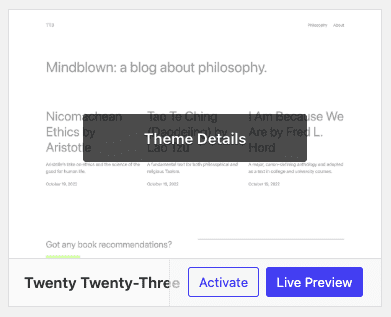
A bigger pop-up screen will appear with fuller details of the theme. At the bottom of this, you will see the ‘Activate’ and ‘Delete’ buttons.
Click ‘Delete.’
A pop-up will appear asking if you’re sure that you want to delete this theme.
As long as this isn’t the theme that you are currently using, and you have a backup theme installed (but not activated), you are ok to go ahead and click ‘Ok.’
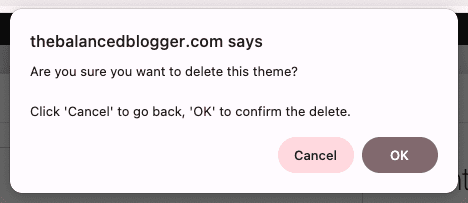
That’s it, you’ve deleted the unused theme!
You will now be taken back to the Themes page in your WordPress Dashboard and the theme that you deleted will no longer be there.
Quick Tip: If you’re deleting a theme because you’re switching to another, remember to install and activate your new theme BEFORE deleting the theme you are currently using.
What is a WordPress Theme?
A WordPress theme is essentially the blueprint for how your blog will look and act when readers engage with your content. There are literally thousands of options available to you when it comes to choosing a theme, with endless possibilities that cost nothing at all, all the way up to super-customised themes costing eye-watering amounts of money.
Generally speaking, the options you’ll be able to control with a WordPress theme are:
- Text font/colour/size
- Layout of blog posts
- Layout of web pages
- How your header and footer will look
- How your blog will appear on different sized screens (i.e. laptops, mobile phones, tablets)
Some themes are built specifically for blogs, whilst others are designed for business, such as hotels, spas, schools, etc. These more specialised ones will come with features more attuned to the business they are looking to serve, for example, with newsletter functions or booking functions built in, without the need for additional plugins.
If you’re wondering, at the time of writing this blog post, I am using the free Astra theme. It’s super lightweight, meaning that my website isn’t slowed down by unnecessary code. For a free theme, it’s got a lot of customisable options.
Why Do I Need To Uninstall and Delete Unused Themes?
WordPress themes make your website look amazing and give it so much functionality, but like anything, the more things that are on your blog that aren’t in use, the more problems it can actually cause.
Here are the main reasons why you need to delete your unused website themes:
- Improve your website speed. The more that is on your website, the slower it’ll be. It’s like carrying anything you don’t need, it slows you down. Do you take extra things that you don’t need with you on a trip to the shops? No. Because the more that you carry, the slower you’ll be. The same can be said for your website. Therefore, to improve your website’s speed, delete what you aren’t using, including themes.
- Improve your blog’s security. I know, I talk about website security a lot, but it’s important. An unused theme on your site means that you have code that is on your blog that’s not needed and potentially with outdated code. And outdated code is a problem, because it creates vulnerabilities that hackers and bots can use to hack your blog.
- Increases your blog’s storage. If you’re anything like me, you don’t think much about your blog’s storage. But every blog and website has a storage limit that is set by their hosting. Most blogs will never go near their set limit, but there’s no point in having content stored on your site that’s not needed. By deleting unused WordPress themes, you can create space for things that actually matter, such as images, written content, plugins…or anything else that you can think of that will actually improve your blog.
- Simpler WordPress maintenance. The more plugins and themes that are on your site, the more maintenance you have to do. Yes, this might just include clicking ‘Update’ on an unused theme that’s now out of date. But why waste the time when you could be using that time to create content? Even if you have your blog set to auto-update plugins, these settings rarely include themes, which you often have to manually update. Save time and get rid of what you aren’t using, and therefore simplify your WordPress maintenance.
What if I Change My Mind About a Theme?
If you delete a theme (maybe because you decided to change your theme) and then want to change it back, don’t stress. You simply need to reinstall the same theme that you had previously deleted and activate it.
Often, after reinstalling a theme, the settings from your previous install will re-activate themselves; however, this all depends on the theme. Reinstalling a theme might mean that you need to do a lot of legwork to get your blog back to looking like it was before you swapped themes.

Verity Sangan
Hey! I'm Verity. I love all things podcasting and am passionate about helping more women to find their voice through podcasting. When I'm not working or busy with mum duties, I host Podcasting for Indie Podcasters (formerly The Lazy Girl's Guide to Podcasting).


You May Also Like

How To Add Your Website to Google Search Console in Under 5 Minutes

12 Things I Wish I Knew BEFORE I Started Blogging